
Free · Windows 10 & 11 · ~10 MB
Every monitor, under control.
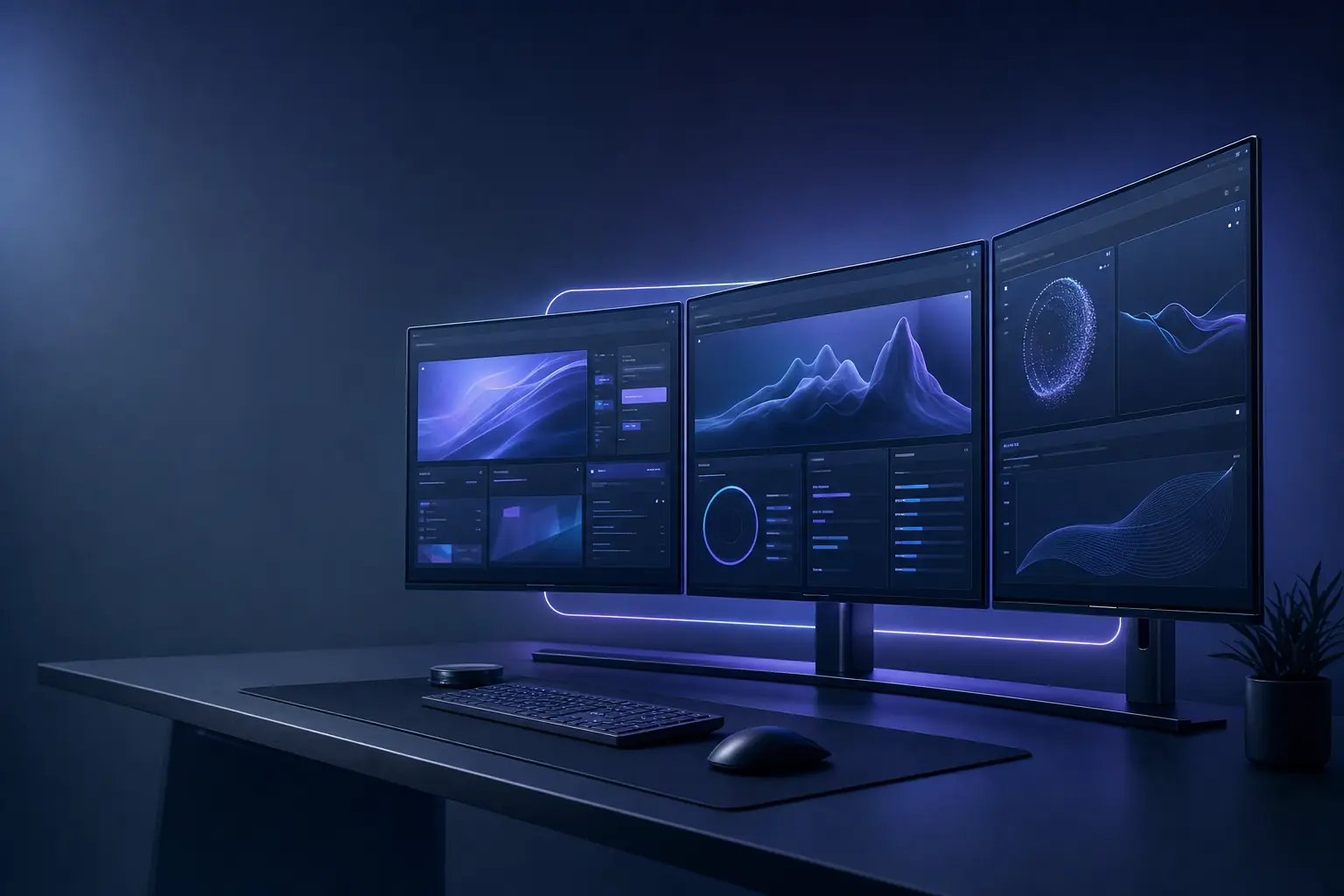
DisplayForge is a tiny, free multi-monitor toolkit for Windows. Throw windows between screens with a hotkey, snap them into zones, switch display profiles in one click and set real hardware brightness — all offline, with no account and no ads.
Free forever · No telemetry · Signed by PROJECTTEAMFORYOU
- 30+hotkey actions
- 12languages
- ~10 MBinstaller
- 0telemetry
Everything your desk of screens needs
One lightweight app replaces a drawer full of utilities. Here is what is inside.
30+ hotkey actions
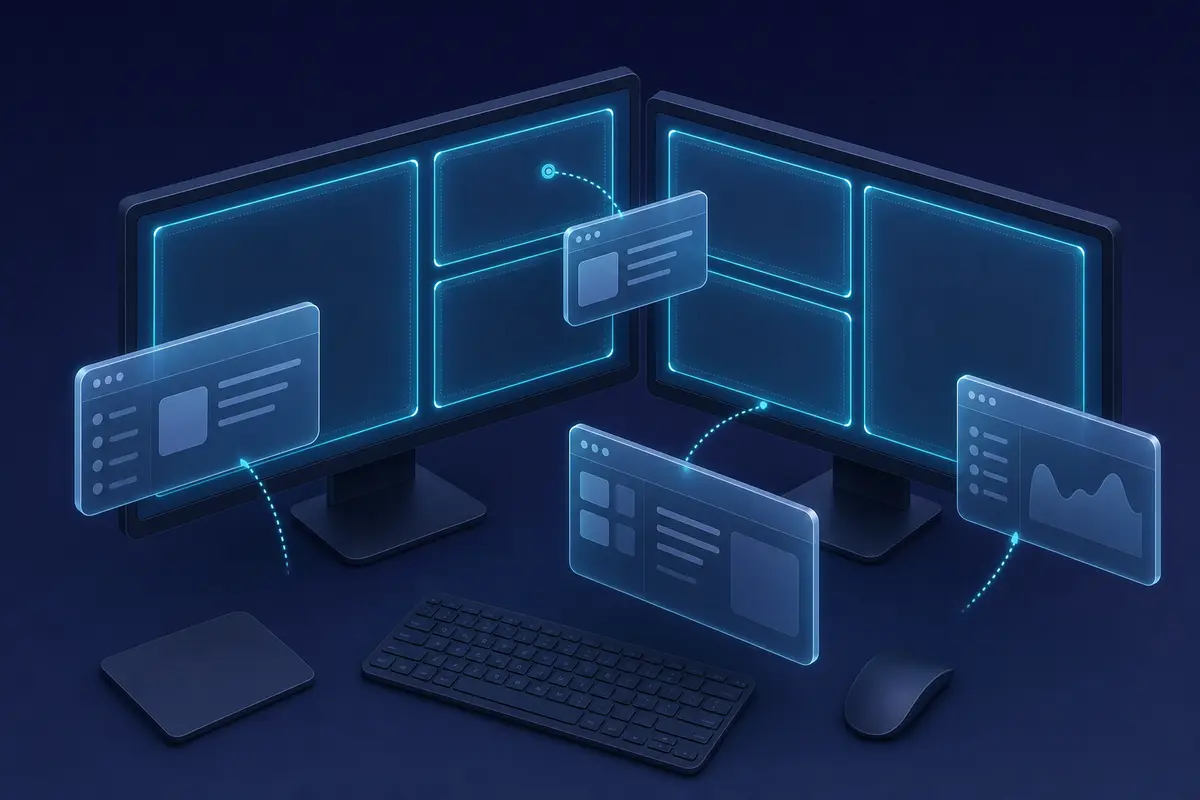
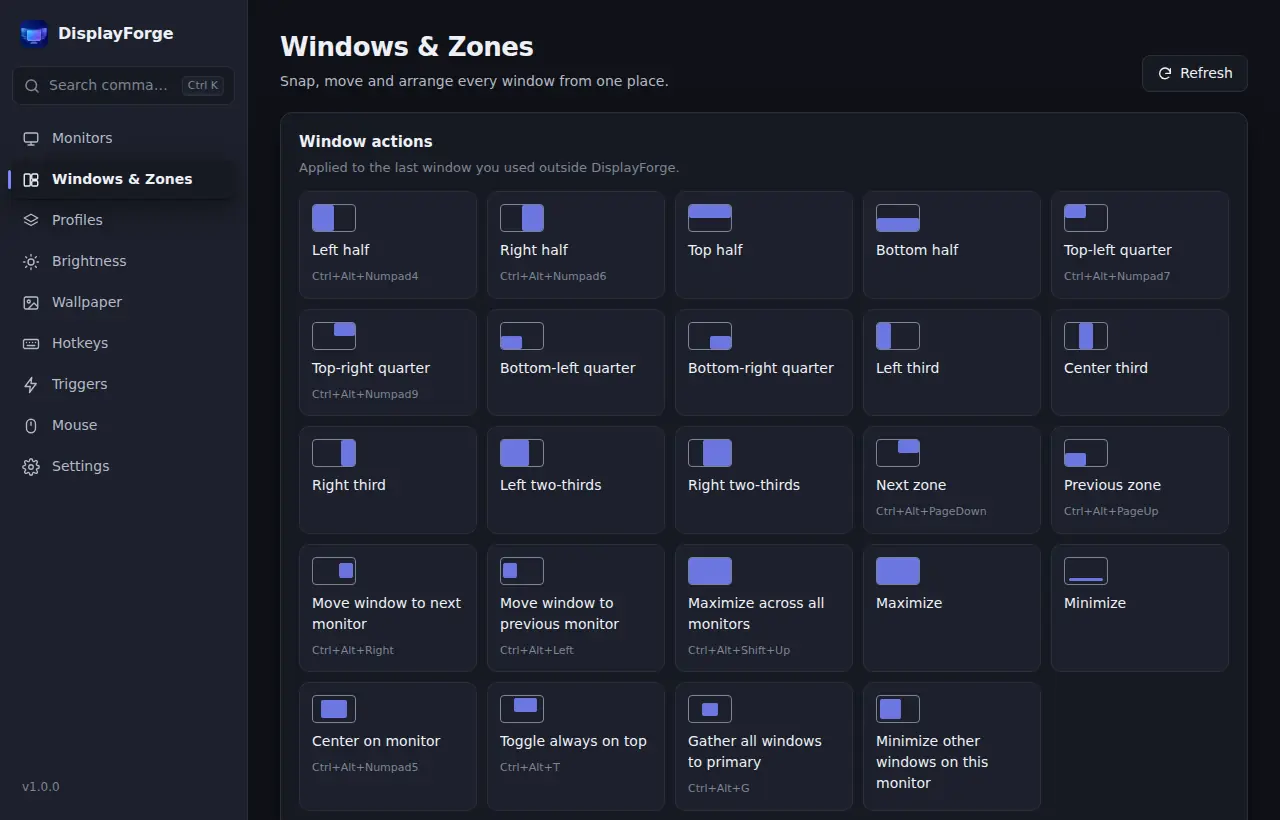
Move a window to the next monitor, span-maximize, snap to halves, thirds or quarters, center, pin on top, gather windows or minimize the rest.
Zone layouts per monitor
FancyZones-style layouts for each display. Cycle a window through its zones with a hotkey, with configurable gaps.
Real hardware brightness
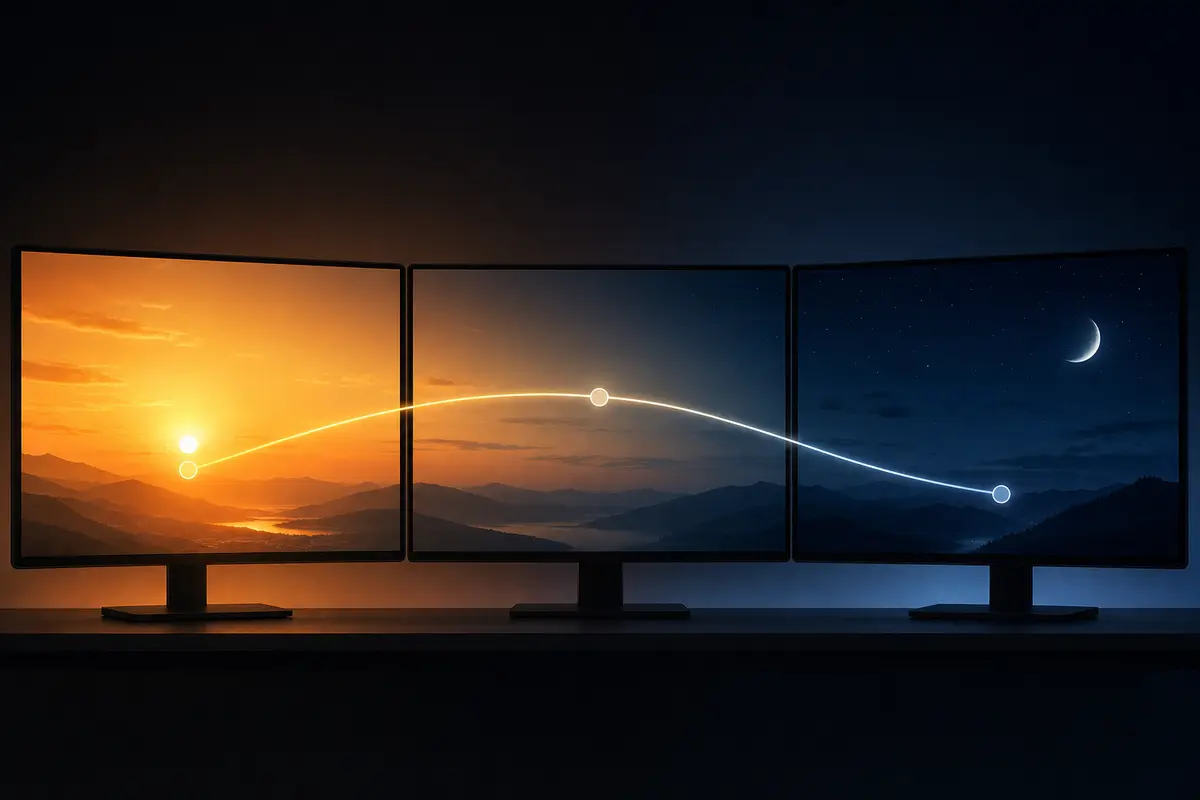
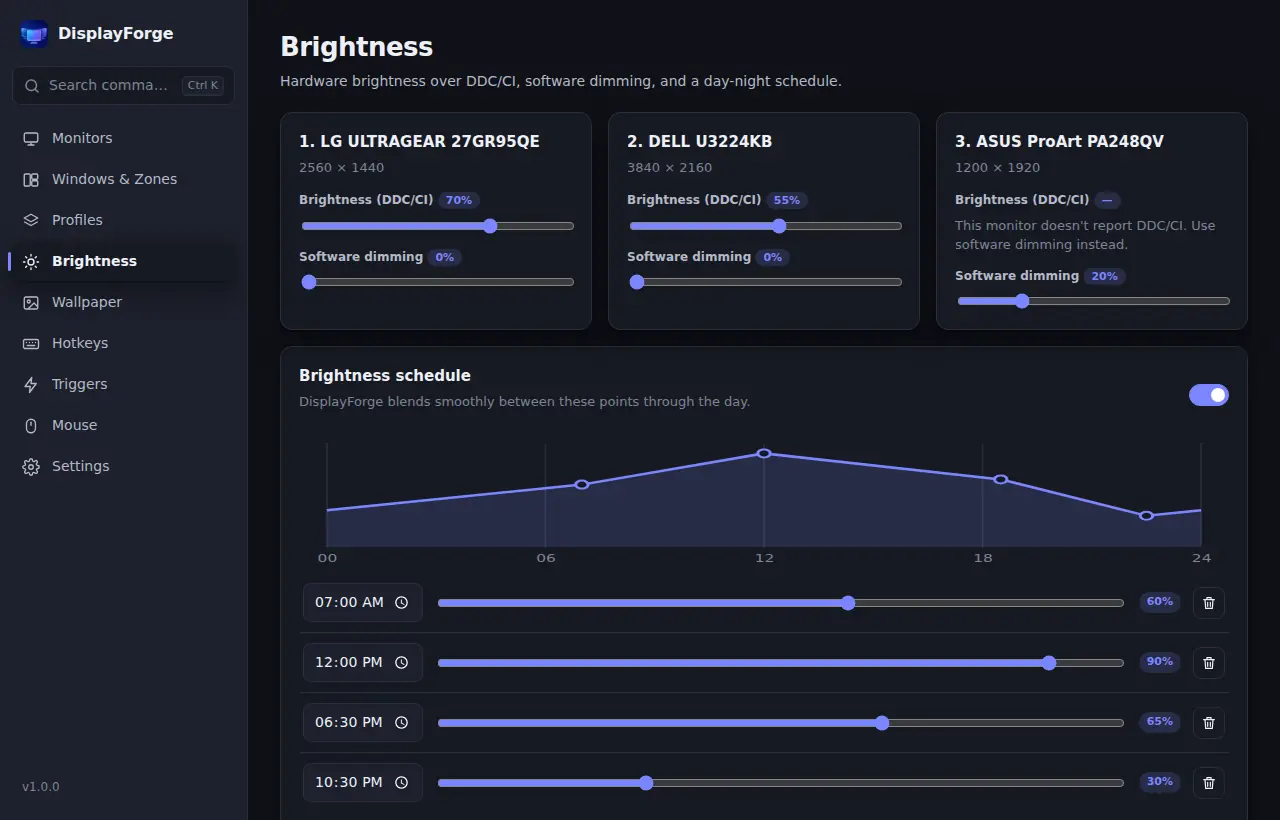
Set each monitor's brightness over DDC/CI, add software dimming for any screen, and let a day/night schedule do it for you.
-
Live monitor map
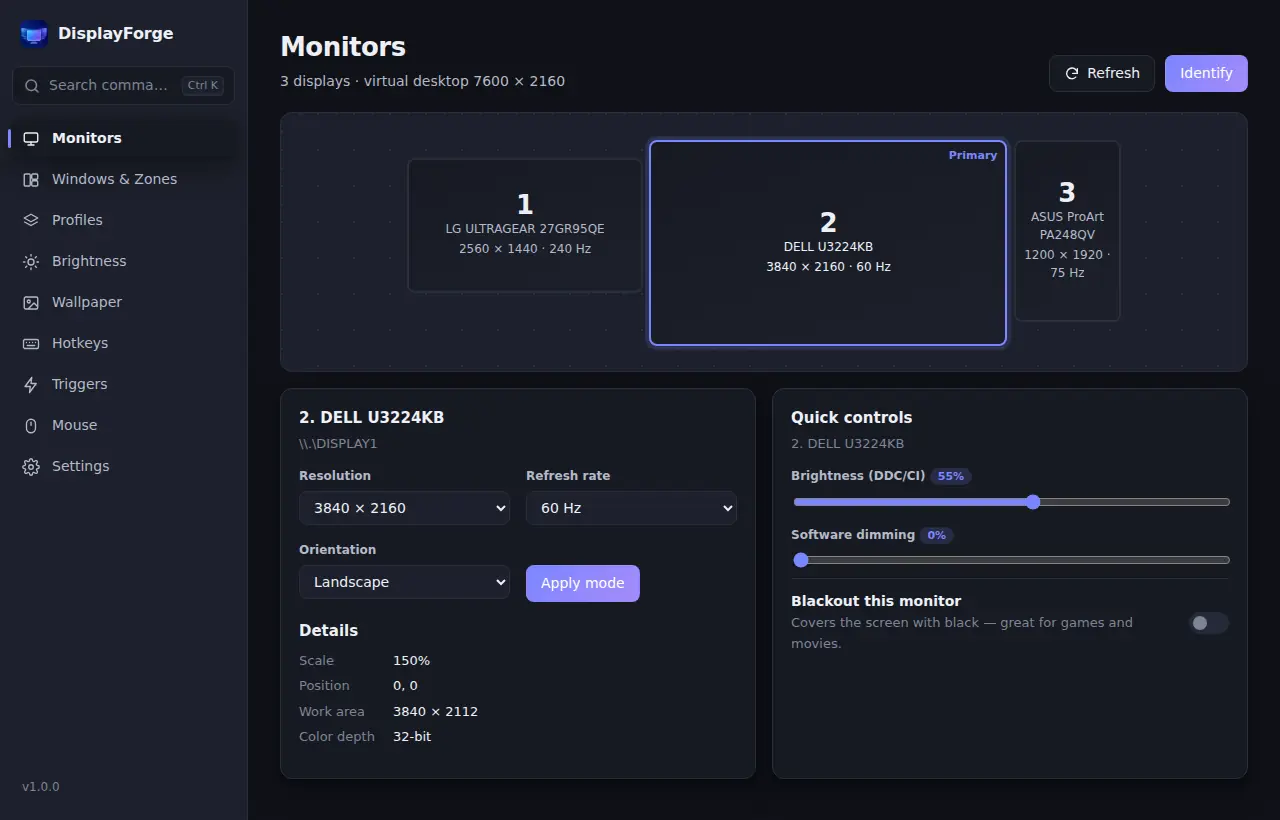
See every display as it is really arranged, with resolution, refresh rate, scaling, orientation and DDC/CI support at a glance.
-
Resolution & orientation switching
Change resolution, refresh rate, rotation and the primary monitor without digging through Windows Settings.
-
One-click display profiles
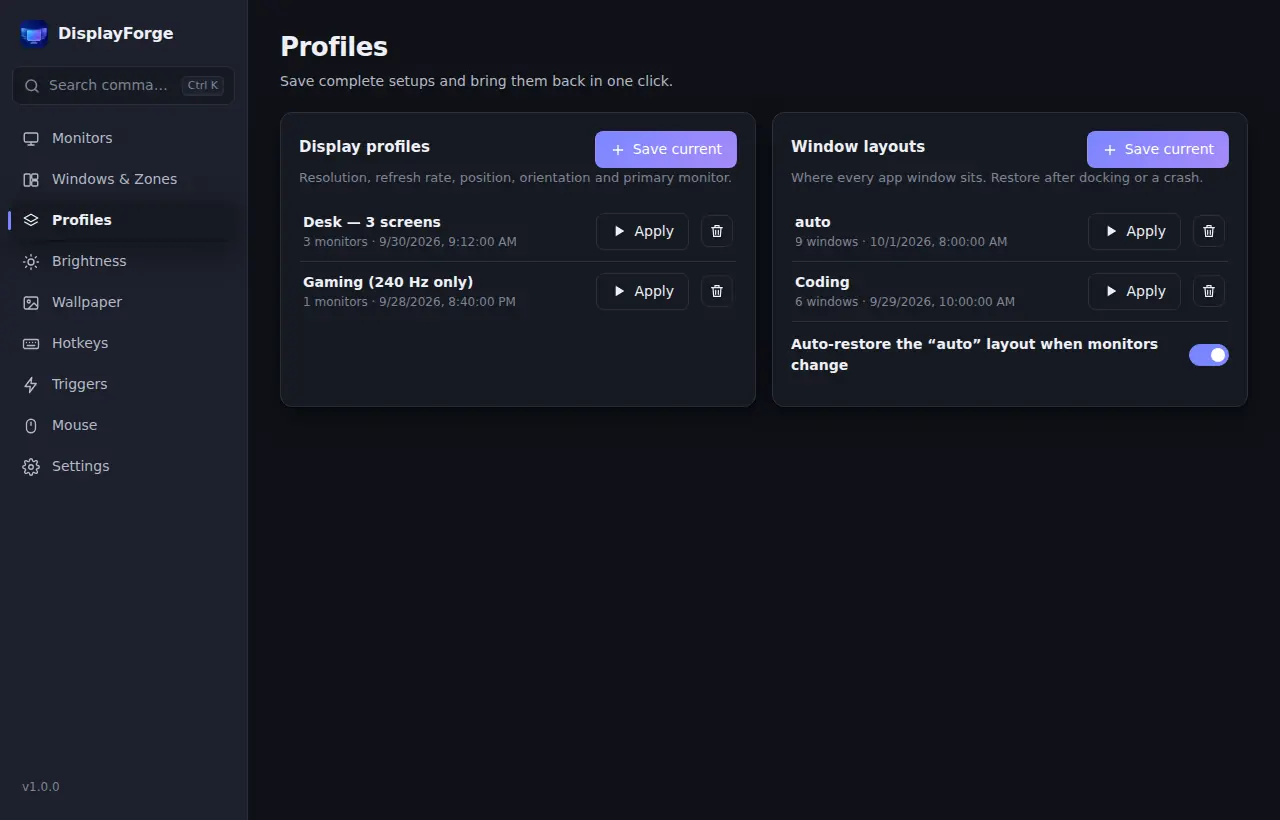
Save your arrangement for gaming, work or presenting and apply it in one click — straight from the tray menu.
-
Per-monitor wallpaper
A different picture on every screen, one image spanned across all of them, or a slideshow from a folder.
-
Window layouts that come back
Save where every window lives and restore it on demand — or automatically when a monitor reconnects after sleep or docking.
-
Triggers & rules
When a monitor connects or disconnects, or an app starts or gets focus, run an action: apply a profile, move a window, set brightness and more.
-
Focus fade & blackout
Dim inactive monitors to keep your attention on one screen, black out the others for games and movies, and identify every display.
-
Cursor superpowers
Wrap the pointer around screen edges, lock it to one monitor while gaming, or jump it to the next display with a key.
-
Command palette
Press Ctrl+Alt+Space and type. Every action, profile and layout is a few keystrokes away, and the tray menu has the rest.
-
Optional · off by default
Optional AI assistant
Say “Slack on the portrait screen, dim the rest” and get a plan you preview on a map before anything moves. Auto-organize windows, design zone layouts, write triggers, plan focus sessions, diagnose displays and generate wallpapers sized for every monitor.
Small, private, and yours
Built with Tauri v2 and native Windows APIs. No background services phoning home, no upsell.
- Offline by default
- No telemetry
- No account
- No ads
- Free, no trial
- Launch at startup
- 12 languages
- Light & dark
- Settings export/import
A calm interface for a busy desk
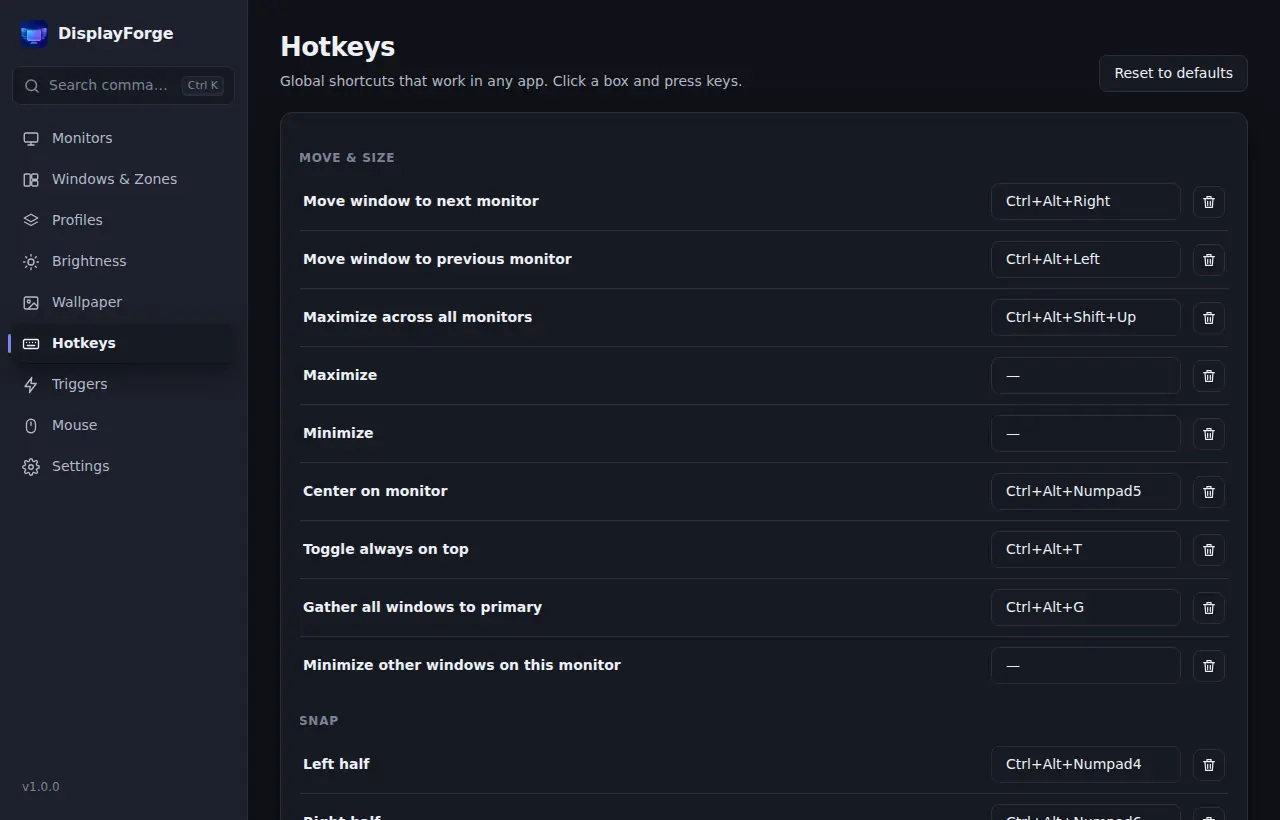
Fluent-style design that follows your Windows theme.
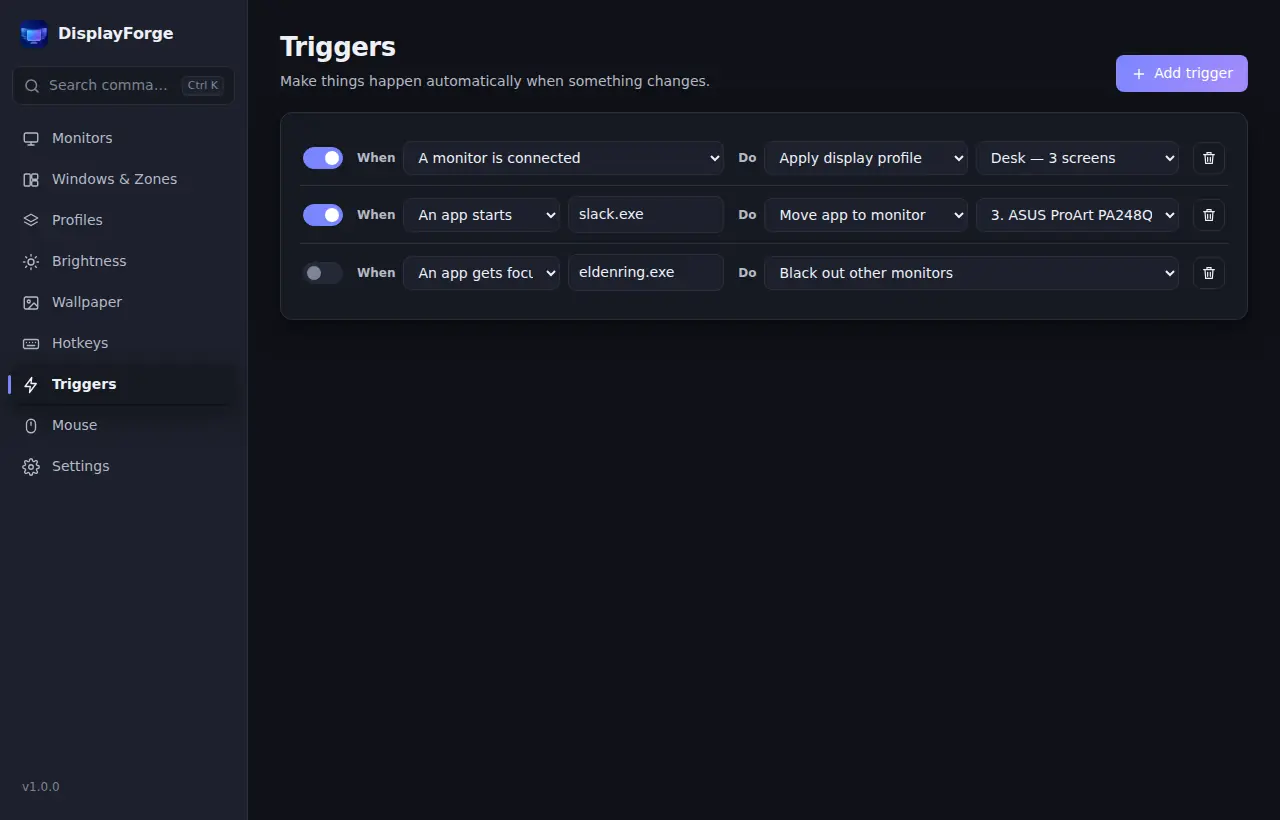
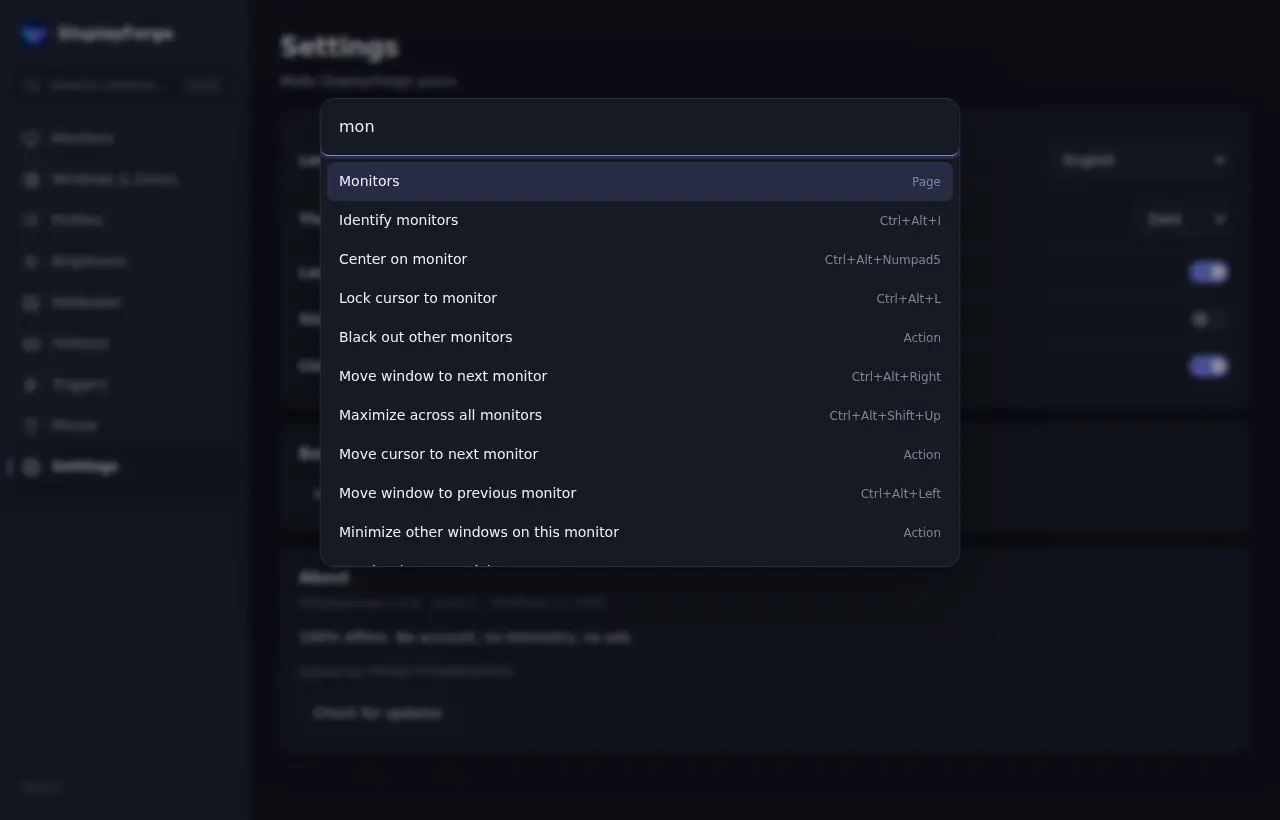
How DisplayForge compares
An honest look at popular multi-monitor tools. DisplayFusion is a great product and does things we don't — here is where each tool fits.
| Feature | DisplayForge | DisplayFusionFree | DisplayFusionPro | Dual Monitor Tools | PowerToysFancyZones | Twinkle Tray |
|---|---|---|---|---|---|---|
| Price | Free | Free | Paid license | Free | Free | Free |
| Move windows between monitors by hotkey | Included | Included | Included | Included | Partial or limited | Not included |
| Zone layouts per monitor | Included | Not included | Partial or limited | Not included | Included | Not included |
| One-click display profiles | Included | Included | Included | Not included | Not included | Not included |
| Save & auto-restore window layouts | Included | Partial or limited | Included | Not included | Partial or limited | Not included |
| Monitor brightness (DDC/CI, dimming) | Included | Not included | Partial or limited | Not included | Not included | Included |
| Per-monitor wallpaper & slideshow | Included | Included | Included | Included | Not included | Not included |
| Triggers (monitor connected, app started) | Included | Pro only | Included | Not included | Not included | Not included |
| Fade or black out other monitors | Included | Pro only | Included | Not included | Not included | Not included |
| Cursor wrap, lock & jump | Included | Partial or limited | Included | Partial or limited | Partial or limited | Not included |
| Multi-monitor taskbars | Not included | Pro only | Included | Not included | Not included | Not included |
| Remote control from a phone | Not included | Pro only | Included | Not included | Not included | Not included |
✓ included · ◐ partial or limited · — not built in
Based on each product's public documentation as of October 2026, to the best of our knowledge. Features change — please check each vendor's website. DisplayFusion is a trademark of Binary Fortress Software; other names belong to their owners.
Download DisplayForge
Free to download and use. One small installer, no bundled extras.
Download the latest releaseSHA-256 checksums for every file are published in SHA256SUMS.txt with each release. Run Get-FileHash in PowerShell and compare.
Popular guides
Short, practical walkthroughs for the most common multi-monitor headaches.
- How to Save and Restore Window Layouts on Windows 11/10
- Windows Move to Wrong Monitor After Sleep? Here's the Fix
- Restore Window Positions After Monitor Disconnect or Undock
- Multi-Monitor Window Layouts for 3, 4 or 5 Monitors
- Free DisplayFusion Window Position Profiles Alternative
- Move Window to Another Monitor: Keyboard Shortcuts
Frequently asked questions
Is DisplayForge really free?
Yes. Every feature is free to use. There is no Pro version, no trial period, no ads and no account to create.
Which versions of Windows are supported?
DisplayForge runs on Windows 10 and Windows 11. It uses the Microsoft Edge WebView2 runtime built into modern Windows, which keeps the installer around 10 MB. If WebView2 is missing, the installer downloads it from Microsoft.
Why does Windows SmartScreen show a warning?
SmartScreen warns about apps that haven't built download reputation yet, even when they are signed. Click “More info” and confirm the publisher is PROJECTTEAMFORYOU before choosing “Run anyway”. The prompt fades away as reputation grows.
Does DisplayForge collect any data?
No. The app has no telemetry or analytics and never needs an account, and your settings are stored only on your PC. It never goes online by itself: the installer may download Microsoft's WebView2 runtime if it is missing, “Check for updates” simply opens the DisplayForge download page (windowlayout.com) in your browser, and the optional AI assistant (off by default) only connects when you turn it on and ask it something.
Will hardware brightness work with my monitor?
Most external monitors support DDC/CI, which DisplayForge uses to change their real backlight brightness. If a display doesn't support it (or DDC/CI is turned off in its menu), you can still use software dimming.
How is it different from DisplayFusion?
DisplayForge focuses on window management, zones, display profiles, brightness and automation — with every feature free. DisplayFusion Pro offers things we don't, such as multi-monitor taskbars and remote control. Pick the one that fits your desk.
Can I back up or move my settings?
Yes. Export all settings — hotkeys, profiles, layouts, zones and rules — to a single file, and import it on another PC.
How do I uninstall it?
Open Windows Settings → Apps → Installed apps, find DisplayForge and choose Uninstall. Nothing else stays running in the background.
Does DisplayForge use AI? What does it send?
Only if you want it to. The AI assistant is off by default. Bring your own key, sign in with OpenRouter, or run fully local with Ollama; keys are kept in Windows Credential Manager. Only your monitor layout and app names are sent, window titles only if you allow it, and every plan is previewed before anything happens.